Run your roster
Coach puts every player you work with in one place: their matches arrive live, their profiles and trends are yours to read, and the Stats tab compares them. This is the weekly routine.
- 1
Link each student
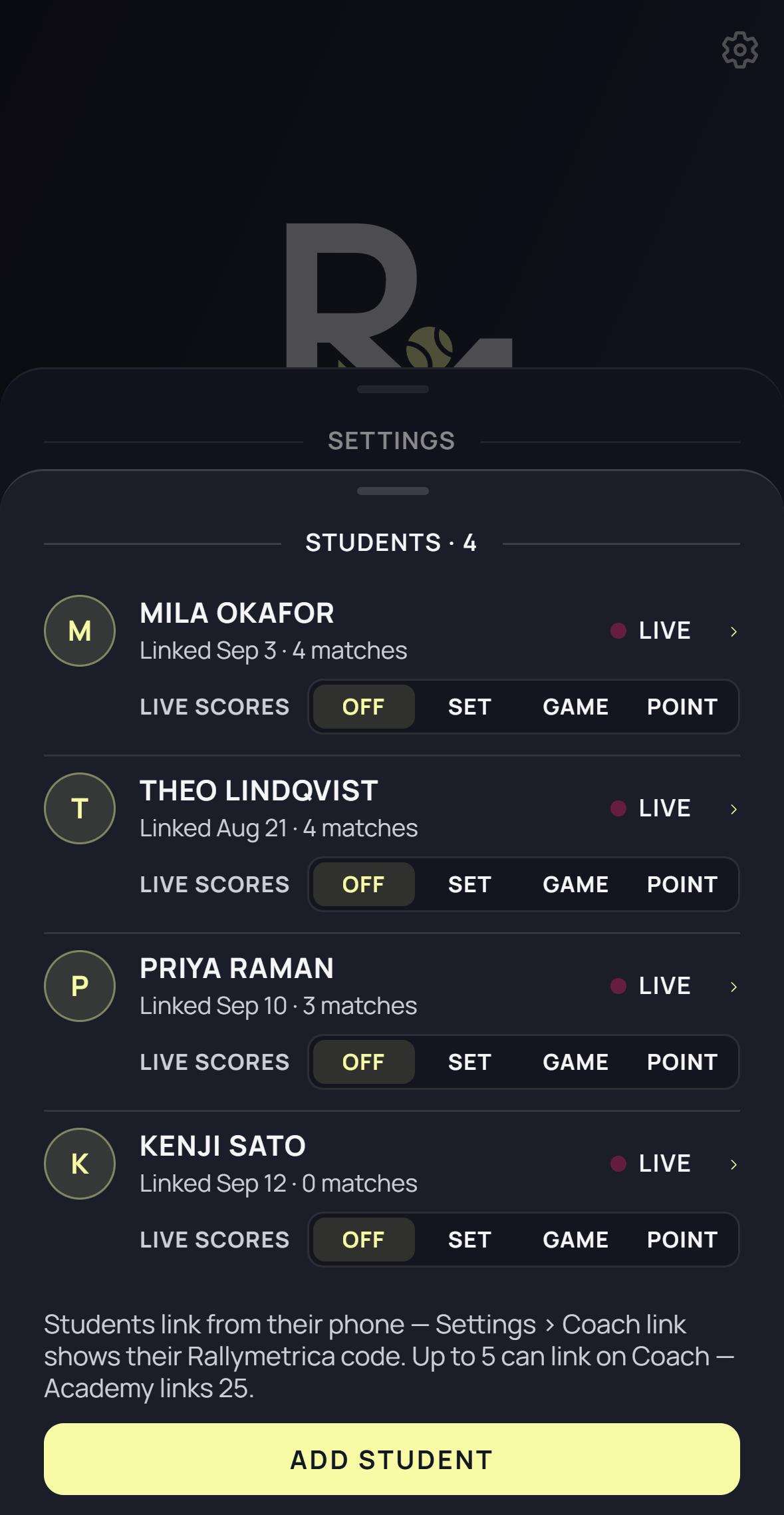
Settings → Students → Add student, scan the code on the student’s phone, and they approve on theirs. The first sync brings their profile and past matches. Coach links up to five students; Academy up to twenty-five. Over the cap, Settings → Plan upgrades you; nothing is unlinked by a plan change.
- 2
Decide how you want to be told
Settings → Notifications → Live scores sets the default: Off · Every set · Every game · Every point. Then, under Settings → Students, each student carries their own strip — Off · Set · Game · Point — which overrides the default for that student. Every point for the match you cannot be at; every set for the rest.
- 3
Follow a match live
A student’s live match appears on Home and in Matches. Open it for the report so far and Replay so far. Points arrive after each saved point, corrections included. The match is read-only on your phone; the student’s phone records it.
- 4
Read the student, not the match
Players → the student opens their profile: Trends across the shared window, Patterns with completions across their Detailed matches, Zones with their zone traits — where middle, deep and the forehand zone begin for this player. Set the zones to the player, because every placement row reads through them.
- 5
Compare two students
Stats: pick a player, a second player, and a common opponent. Two series on one axis, same metric, same cut. Who sits higher and whose dots scatter less are different facts; the steadier player is the one to trust on the day, the higher, less steady one has the clearer thing to work on. The same chart is how you tell a student the truth with numbers rather than opinion.
- 6
Hand the work back as a pattern
Draw the sequence in Patterns, Assign to the student, save. It syncs to their phone; they include it in their next Detailed match; attempts · completions · won come back in that match’s report and accumulate on their profile.
- 7
Pausing and unlinking
The student controls the link: Settings → Coach link → Unlink on their phone. Once your app is online and receives it, the copies you received through the link are removed; your own recorded matches stay. Pausing stops new updates and keeps the copies.
Good to know
- You appear on Players under YOU with your own matches; students sit under ROSTER. A coach is never a student on their own phone.
- Shared matches are read-only; corrections come from the recording phone.
- Coach and Academy differ only in the student cap: five or twenty-five.
- Points arrive in the background with the notification you chose; unfinished shot taps are not shared until the point is saved.
Keep exploring