Read the match. Revisit the rally.
The final score tells you the result. The report helps you understand how it happened, from serving and pressure to momentum and recorded rally paths.
- 1
Open the match report
Open a finished match from Matches, or choose Quick stats from the live match menu to review the match so far.
- 2
Explore the report pages
Swipe horizontally or use the page picker to move between Cover, Momentum, Aggression, Points, Serve, Return, Pressure, Landings, Patterns, and Timeline. The available pages depend on the data recorded.
- 3
Narrow the question
Use the available set, Situation, and Score filters to isolate a part of the match. Try a pressure situation or a specific set, then compare the players within that selection.
- 4
Open a recorded rally
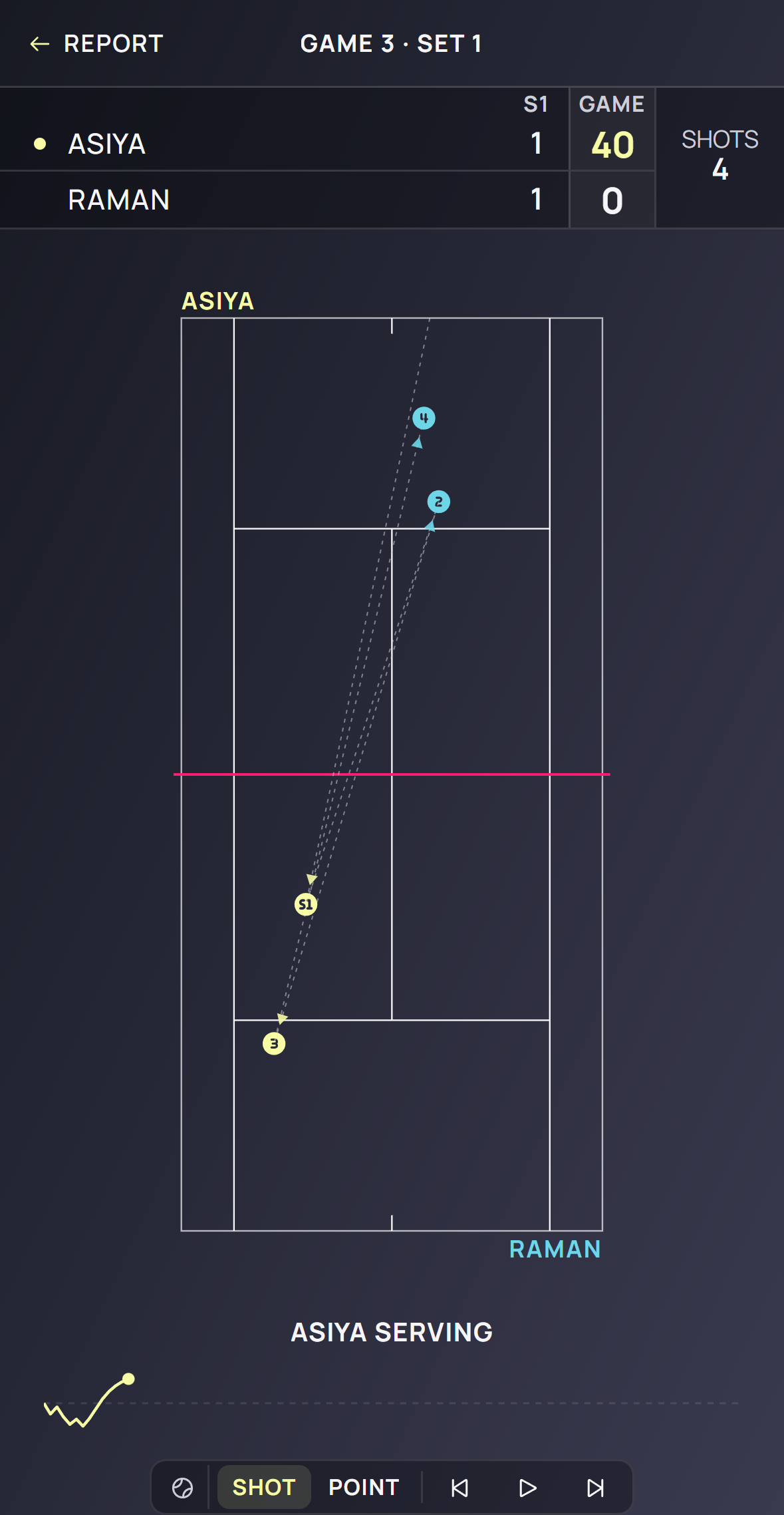
In Timeline, open a game to inspect its points. Tap a replay icon for a point, game, or set. A live match card’s Replay so far opens the recorded match to date.
- 5
Control the replay
Use play/pause and previous/next. Choose Shot, Point, Game, or Set when available, or tap the momentum strip to jump to a moment.
Good to know
- Replay animates recorded placements; it is not video. Full court paths require Detailed tracking.
- Placement and Landings require Detailed tracking. Shots appears only when a match contains speed data.
- Point, Game, and Set controls appear when the selected replay contains enough of those units.
Keep exploring